

Coding Our Emotions
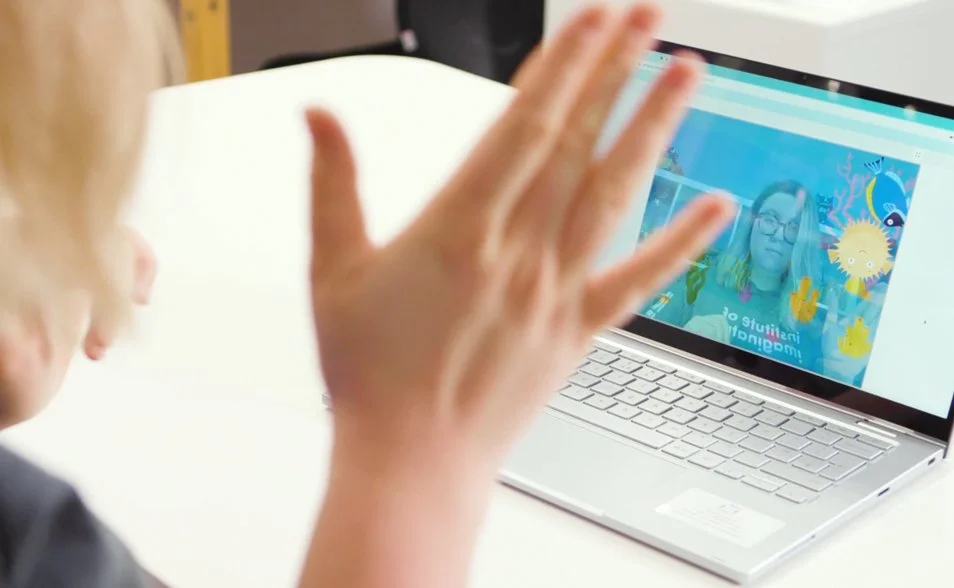
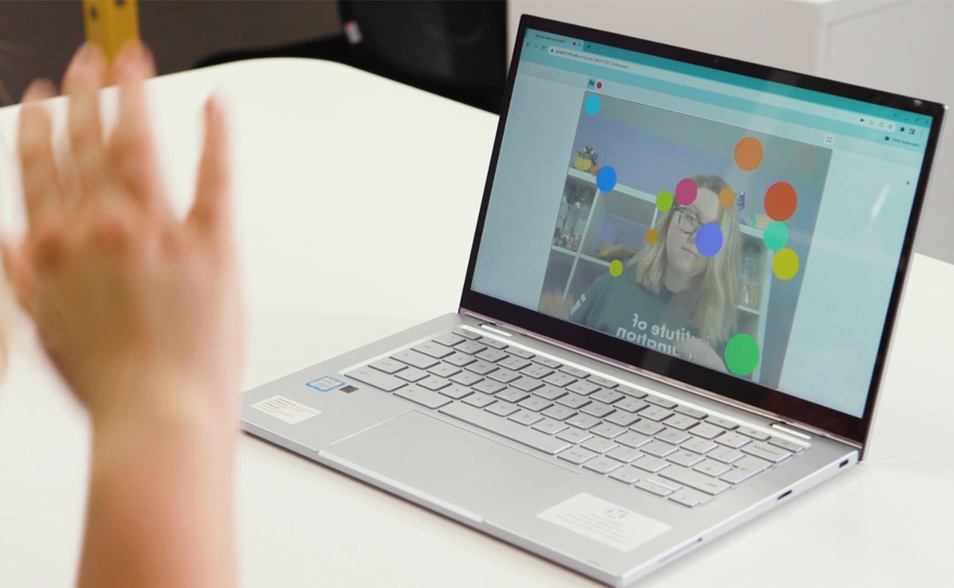

Discover how Scratch, a coding language and the world’s largest coding community for children, can help your students develop emotional intelligence while making interactive video games.
By applying computational thinking and problem-solving skills, your class will learn block coding while creating games to refocus and boost their feelings in a fun, engaging way.
Skills and Competencies
Learning Outcomes
Curriculum Links
Vital lifelong skills include curiosity, critical thinking, creative problem-solving, scientific and mathematical thinking, and engineering. Additionally, these skills encompass the ability to collaborate with diverse individuals.
Support the empowerment of aesthetic appreciation, increase resilience and aspiration, and build capacity for innovation and entrepreneurship.
Emotional Intelligence: Understanding how emotions work and how they influence our actions and behaviours.
Coding Skills: Developing coding skills by using Scratch to design and programme interactive video sensing games.
Creative Expression: Designing characters, scenes, and game elements that creatively express and respond to emotions.
Critical Thinking: Strengthening critical thinking skills through the design, testing, and iteration of games.
Introduction to Scratch
To learn more about Scratch and to find additional coding challenges, please download the coding resources.
Scratch Toolkit
Let's first learn about the Scratch toolkit and how it works!

Click to enlarge the image
1. Code: different code categories and code blocks
2. Costumes: Sprite costumes, create new costumes or edit existing ones
3. Sounds: find, create or edit existing sounds
4. Share your projects with others
5. Green flag: run the code, red octagon: stop the code
6. See the code and the Sprite(s) in action
7. Add backdrops
8. Add a Sprite (Sprites are main characters or actors in your project. They are programmed to do something in Scratch)
9. Build your code in this section
10. Add an extension
Code block types






Searching and adding backdrops
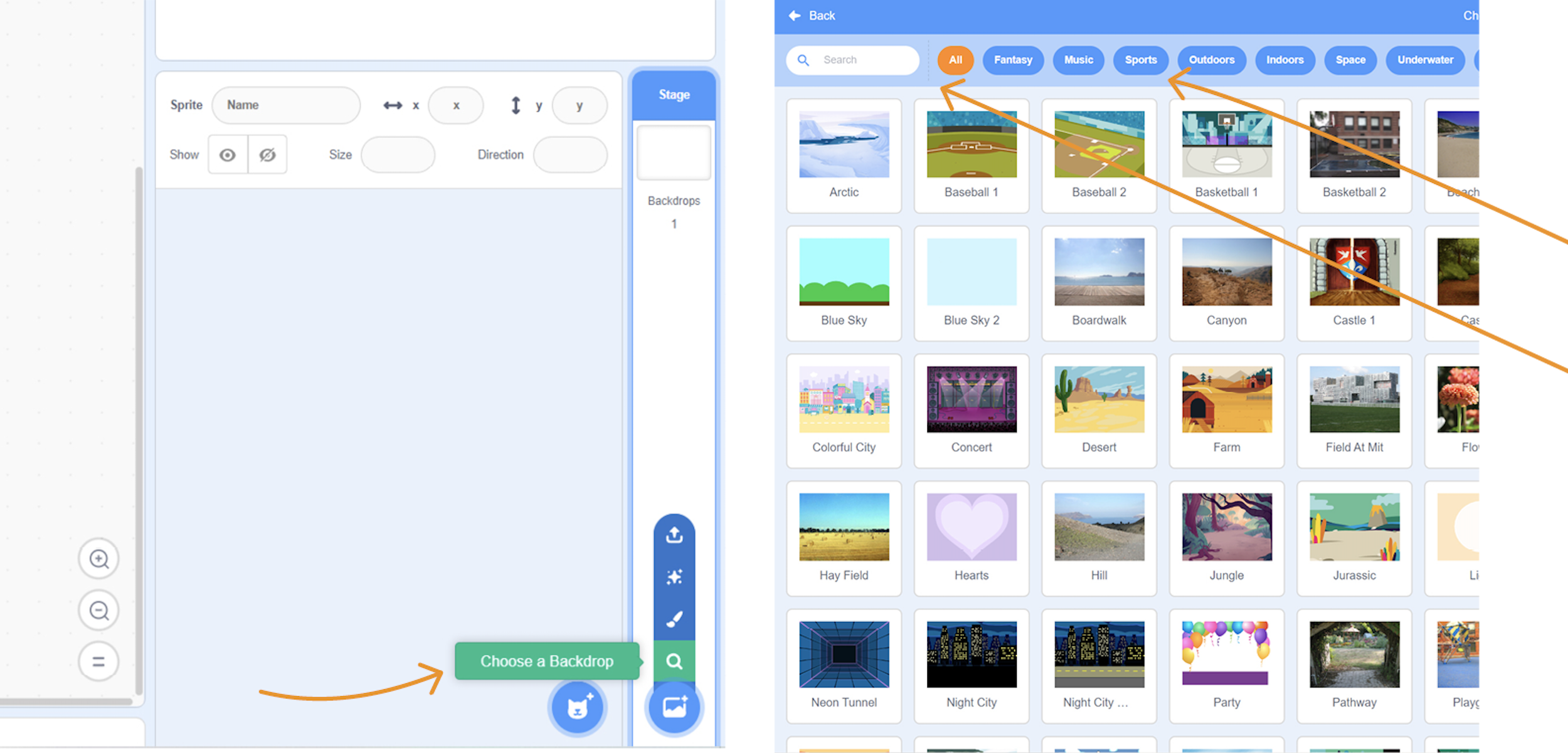
Click on ‘Choose a Backdrop’ to search the library. Use the ‘Search’ bar or the categories.
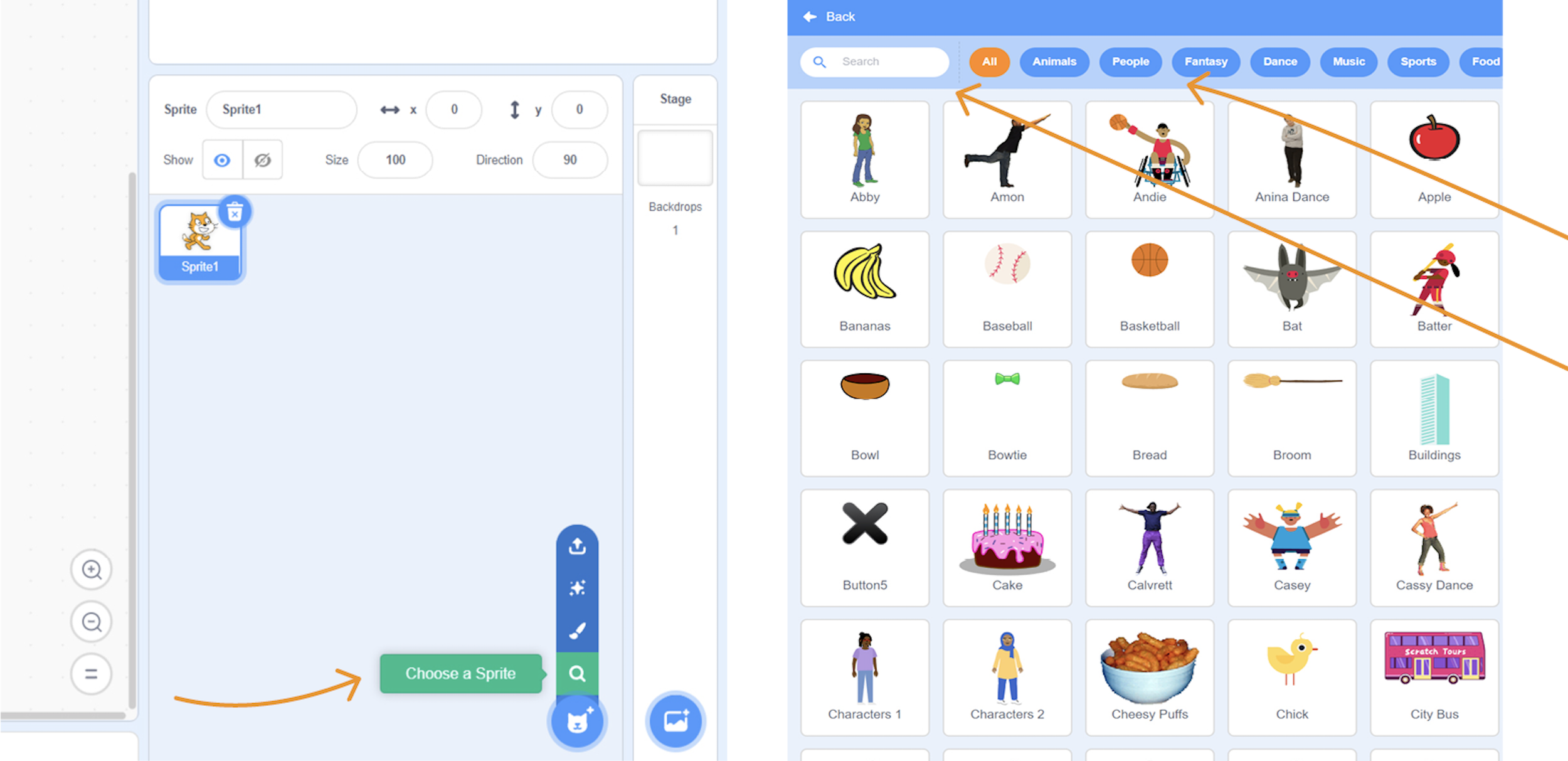
Searching and adding Sprites
Click on ‘Choose a Sprite’ to search the library. Use the ‘Search’ bar or the categories.
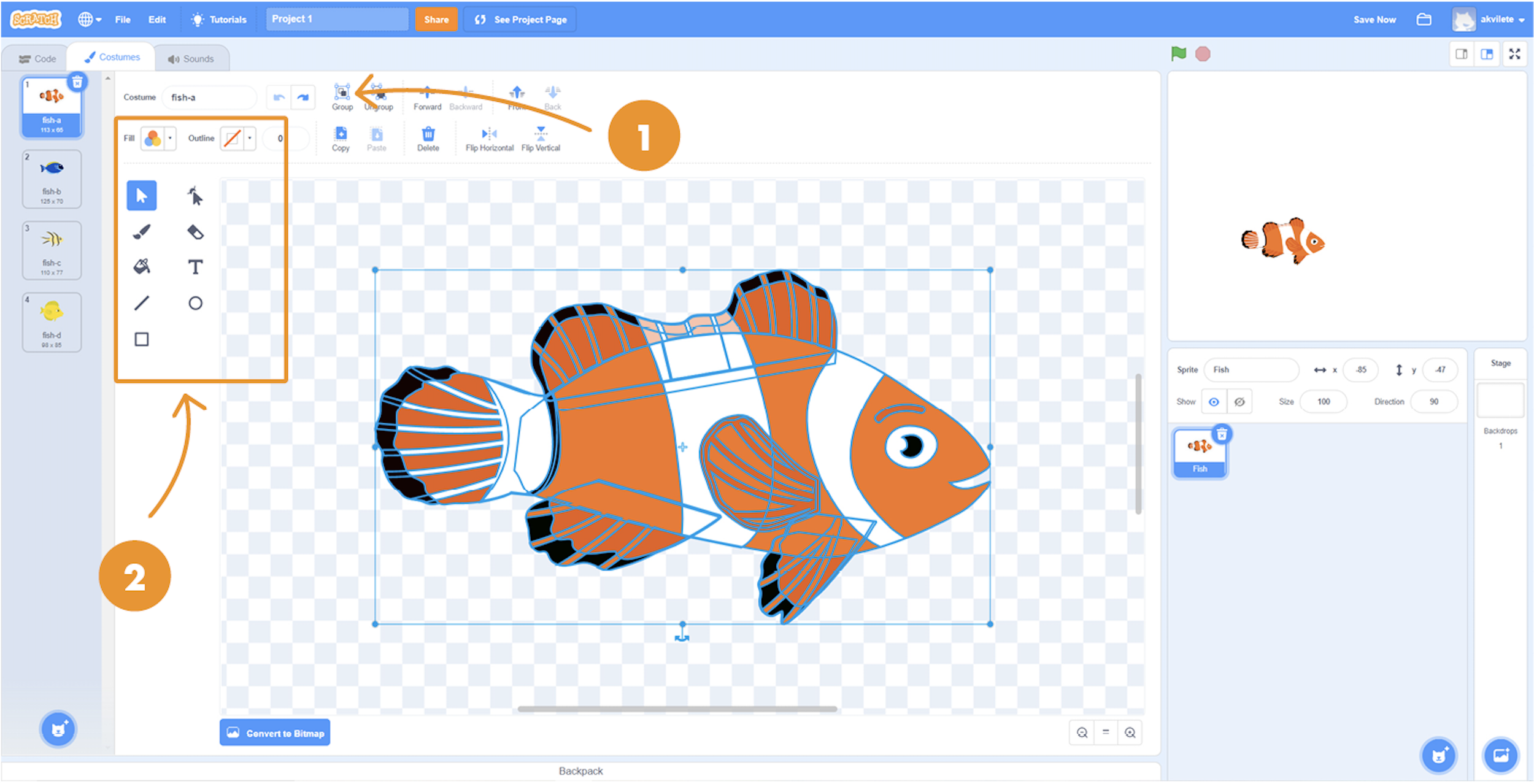
Editing Sprites
1. Select the Sprite then click ‘Ungroup’ before editing.
2. Then, select parts you want to edit and use the tools.
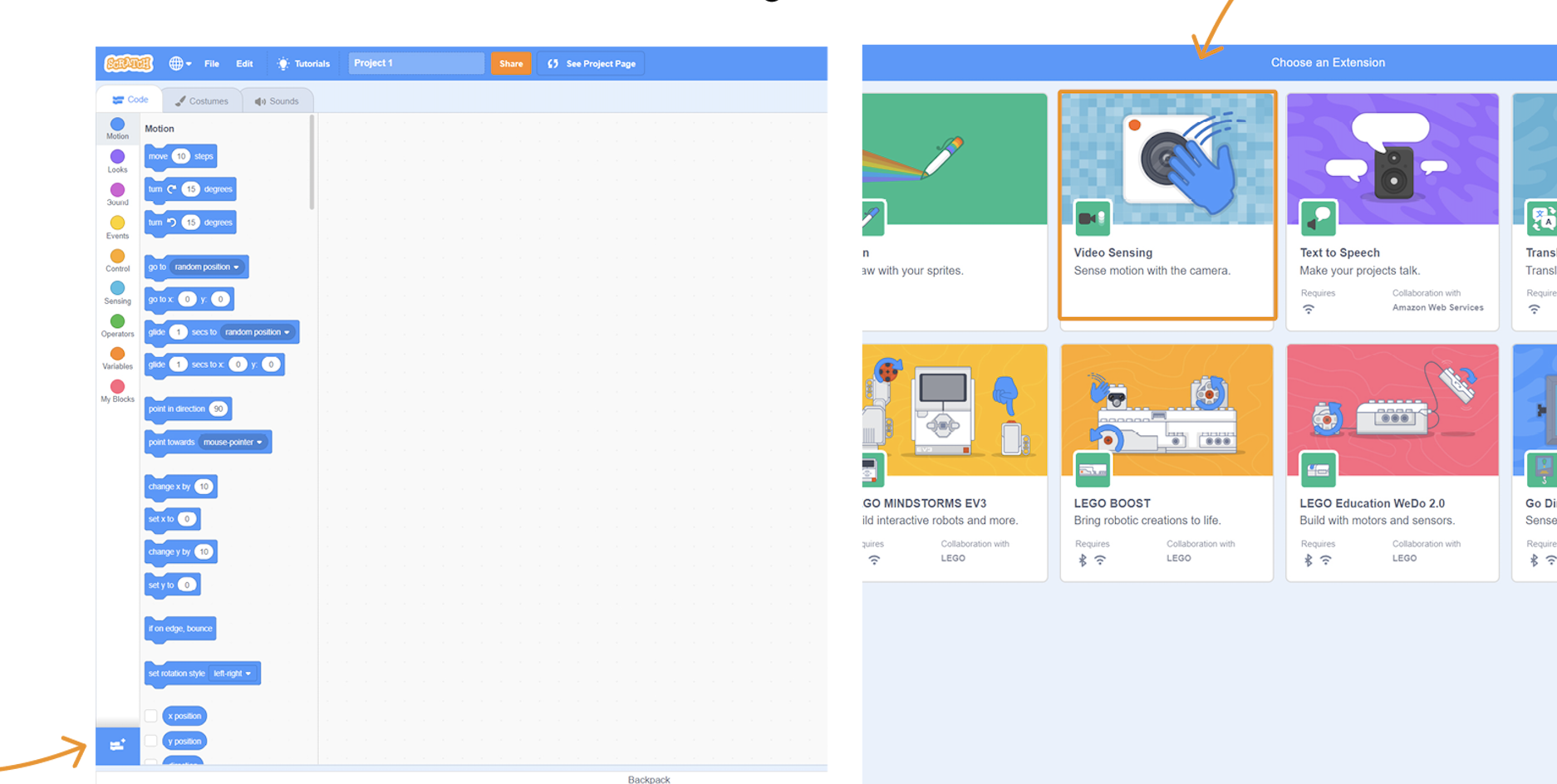
Video Sensing
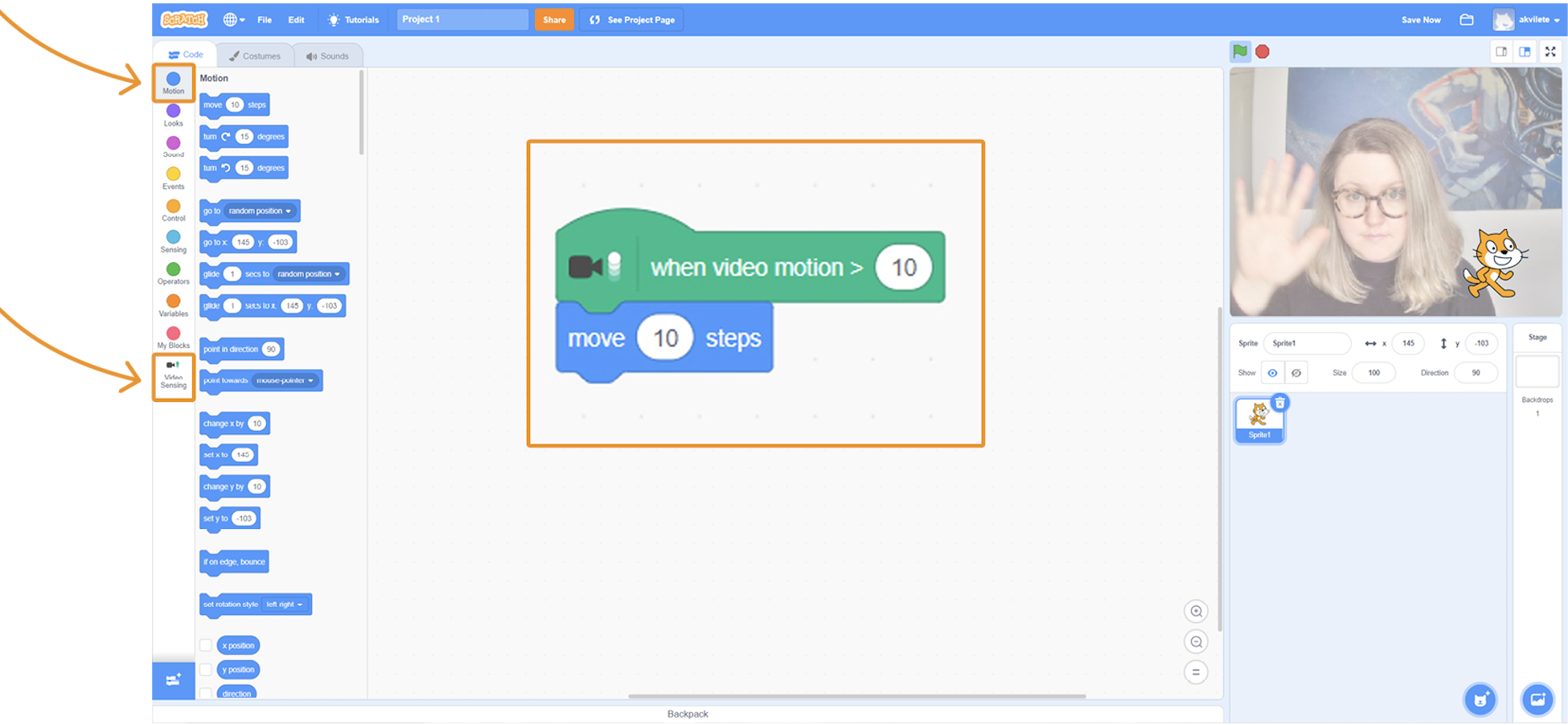
Click on ‘Add Extension’ and select ‘Video Sensing’.
Tip: If you do not see yourself here, check your camera settings in the browser and refresh the page.
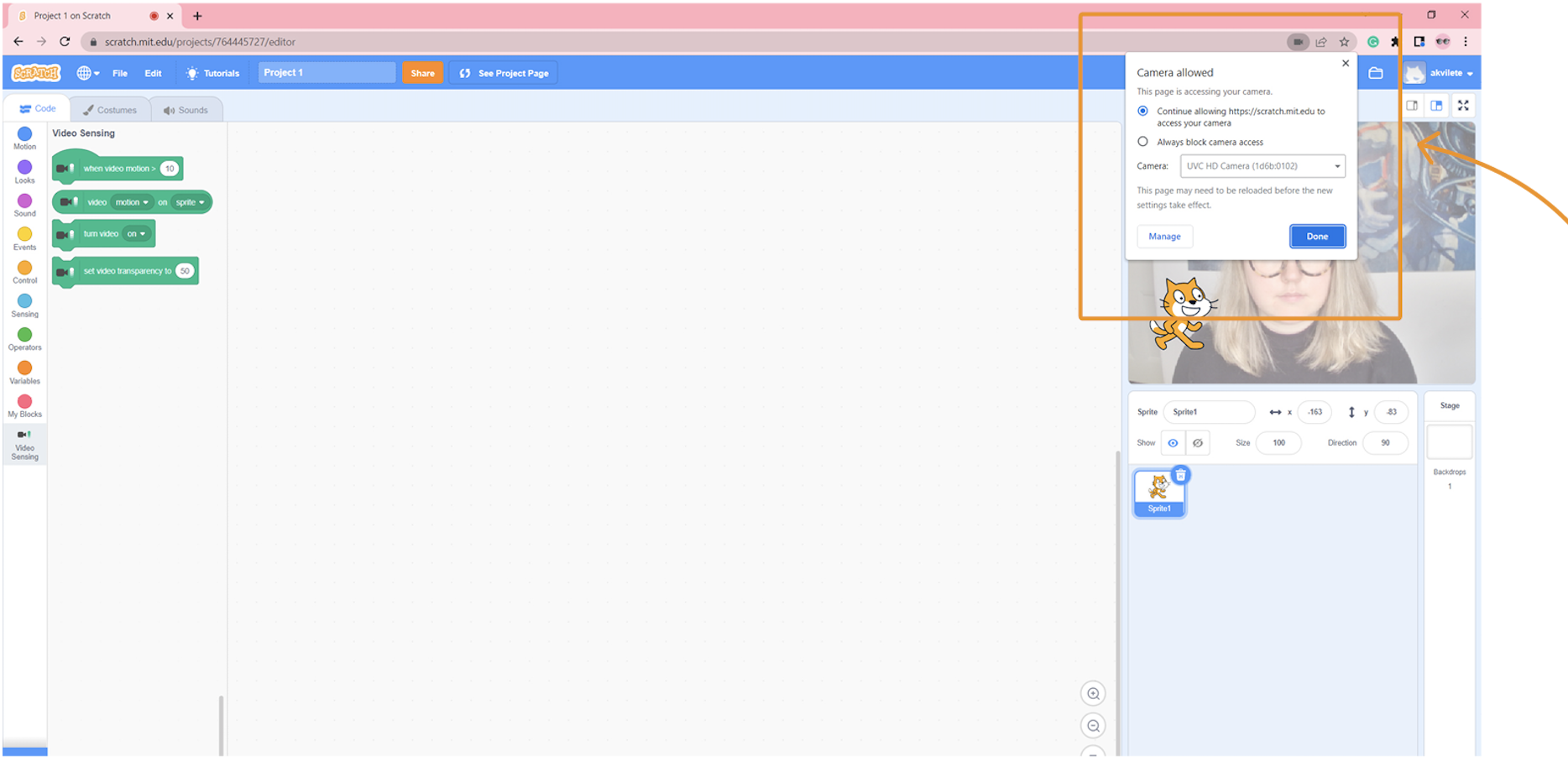
Drag and drop the first code block, then snap another one underneath it and wave in front of your camera to see your Sprite move.
Workshop Essentials

iOi Challenge
Using shapes and patterns inspired by nature, invent and engineer 3D paper buildings.
-
Laptops, tablets or computers
Coding resources
Teacher Scratch account (optional)
Get coding!
Design and build calming games. First, have a think about what makes you calm and relaxed.
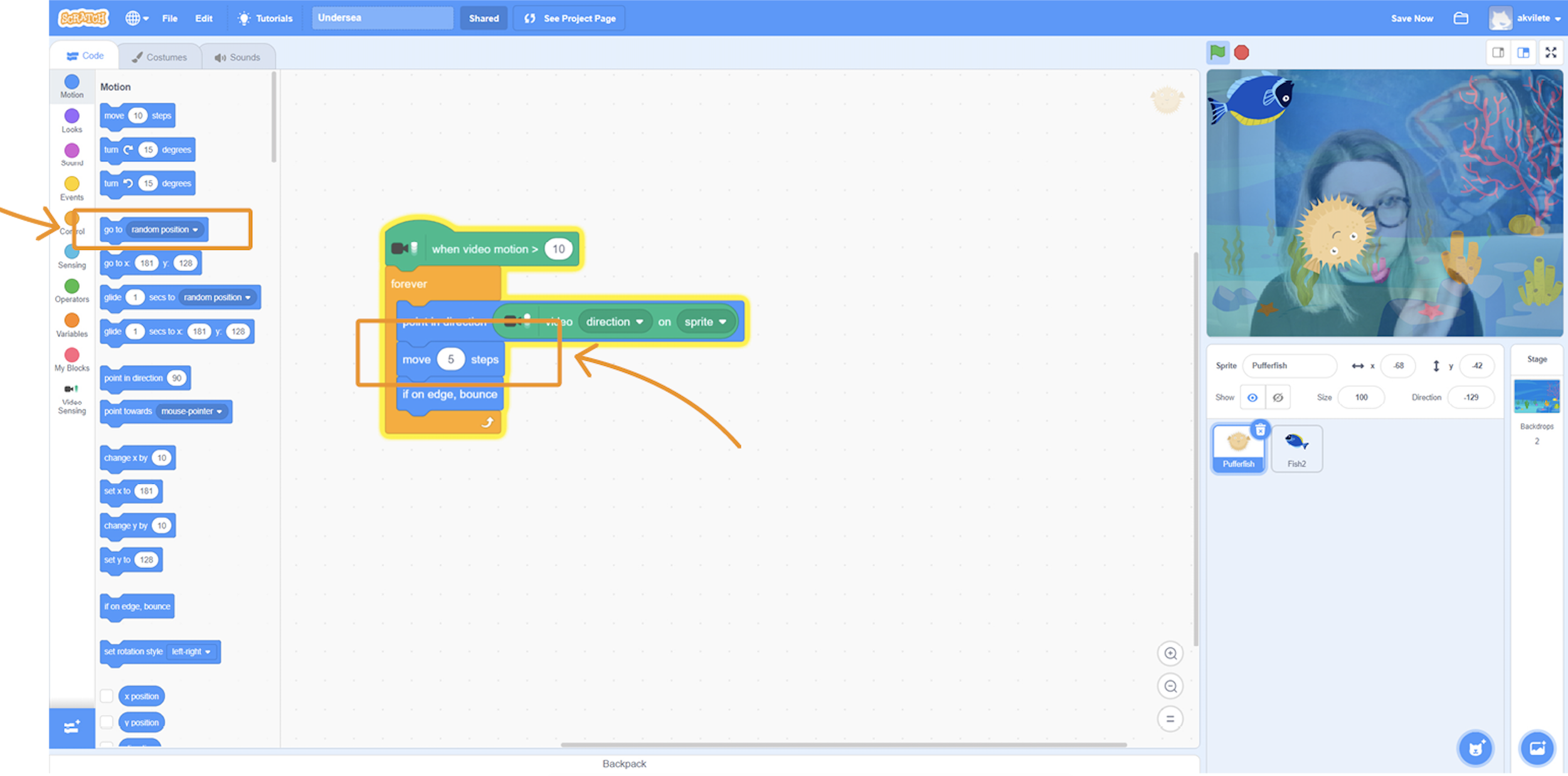
Below is a calming game we designed and called ‘Pacific Dip’. Copy the code and try it out yourself!
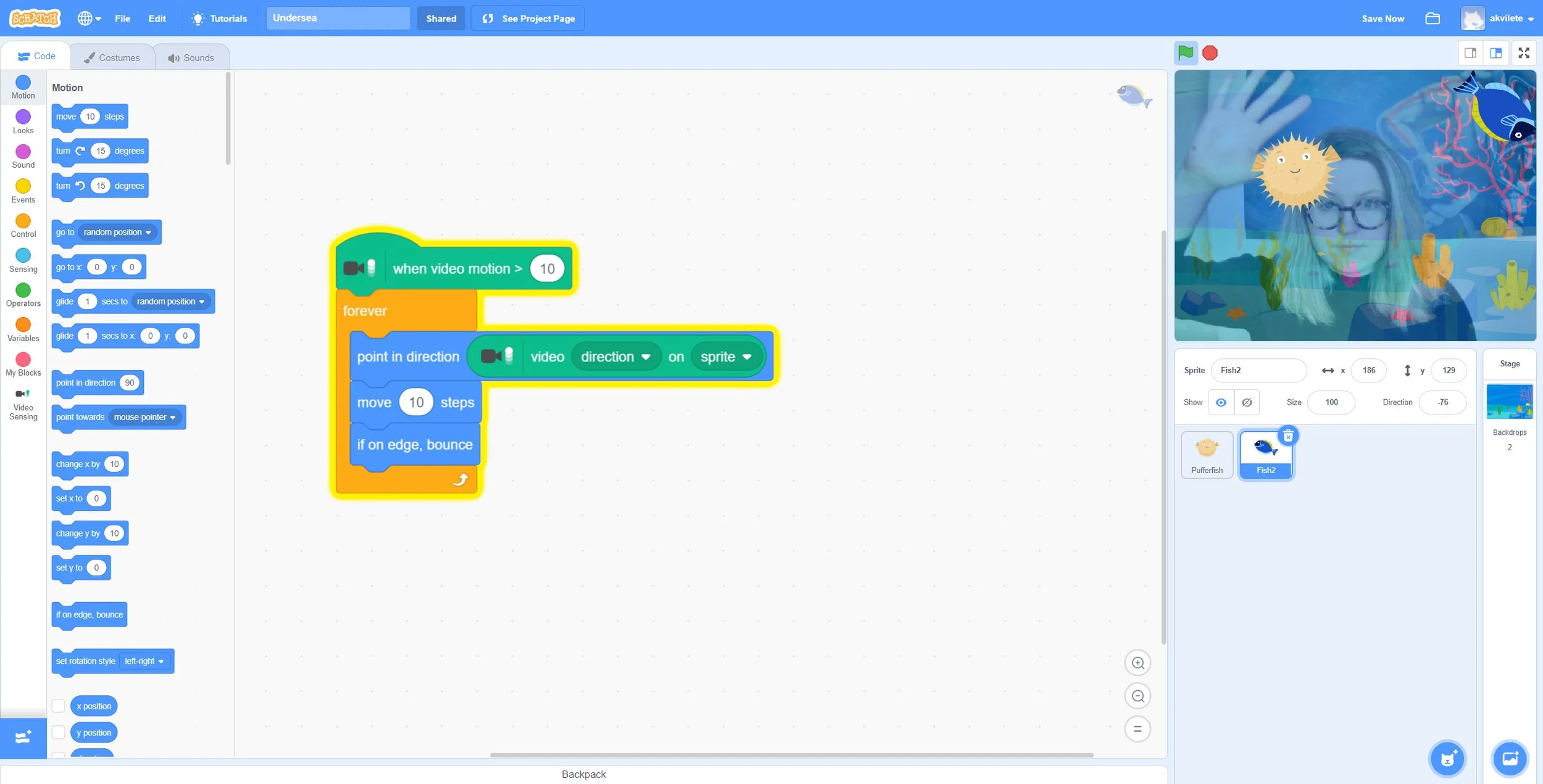
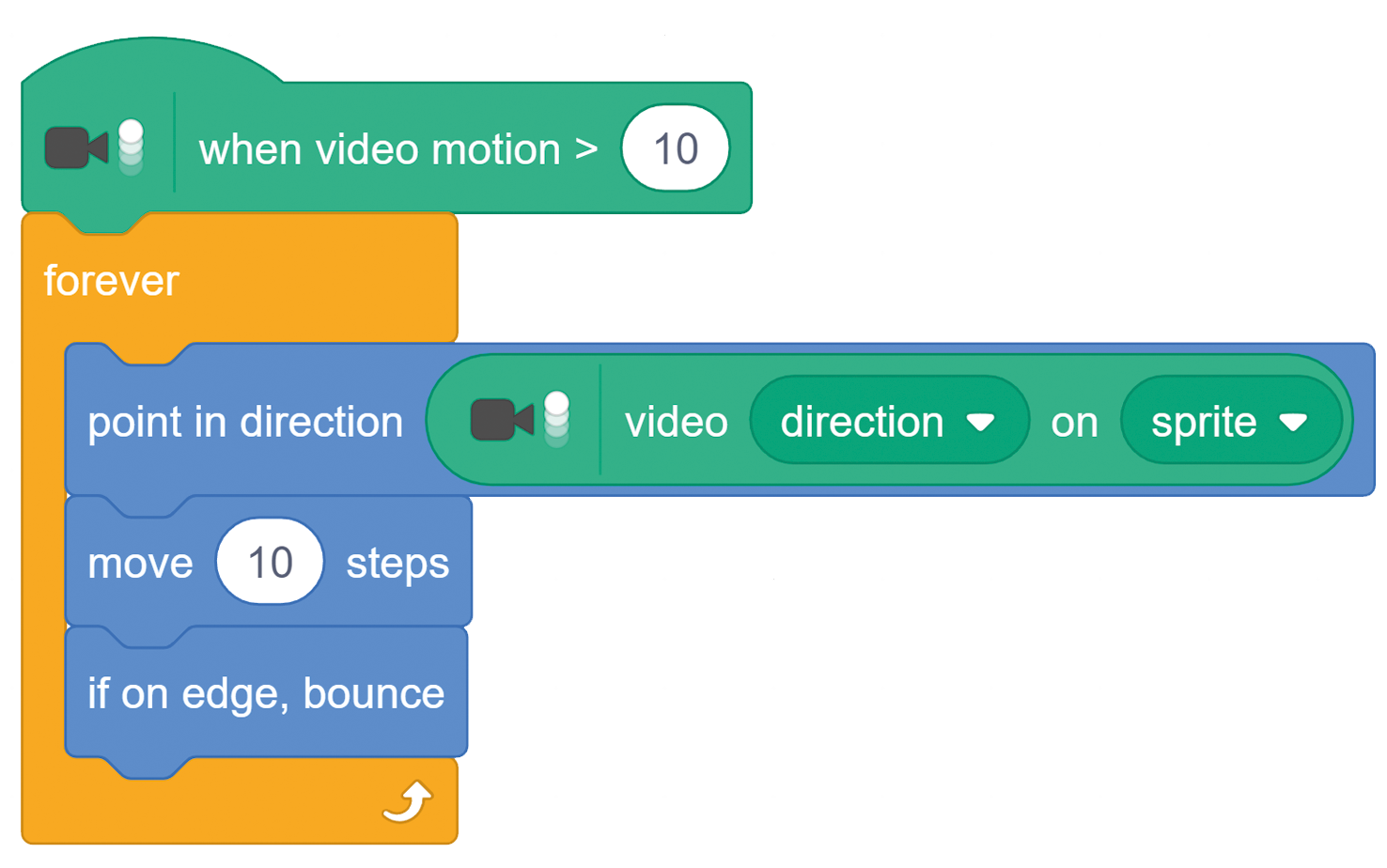
Experiment: Can you add more Sprites, change their costumes or colour?
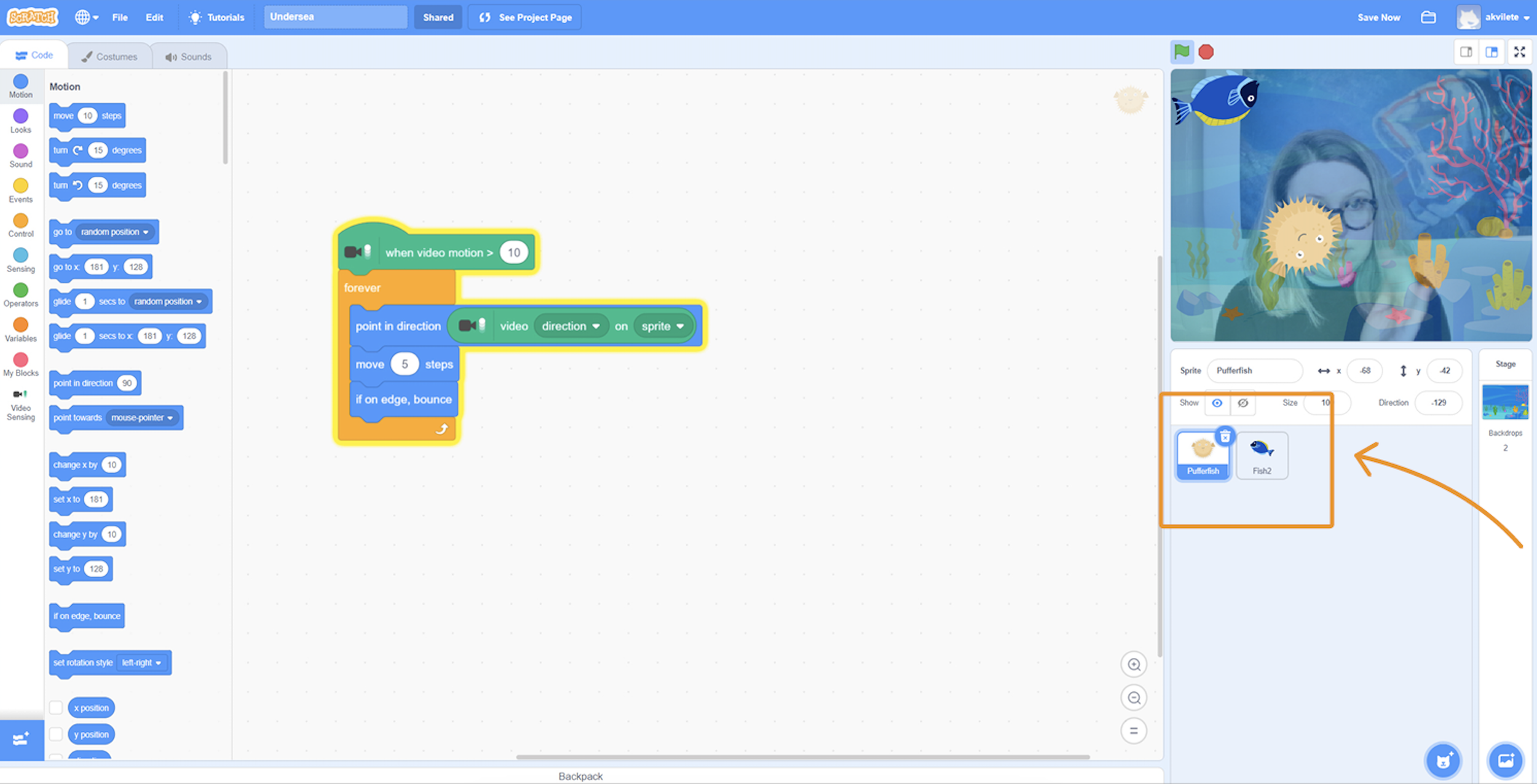
Experiment: What happens if you change the number or swap this block with a different one?
Top Tips
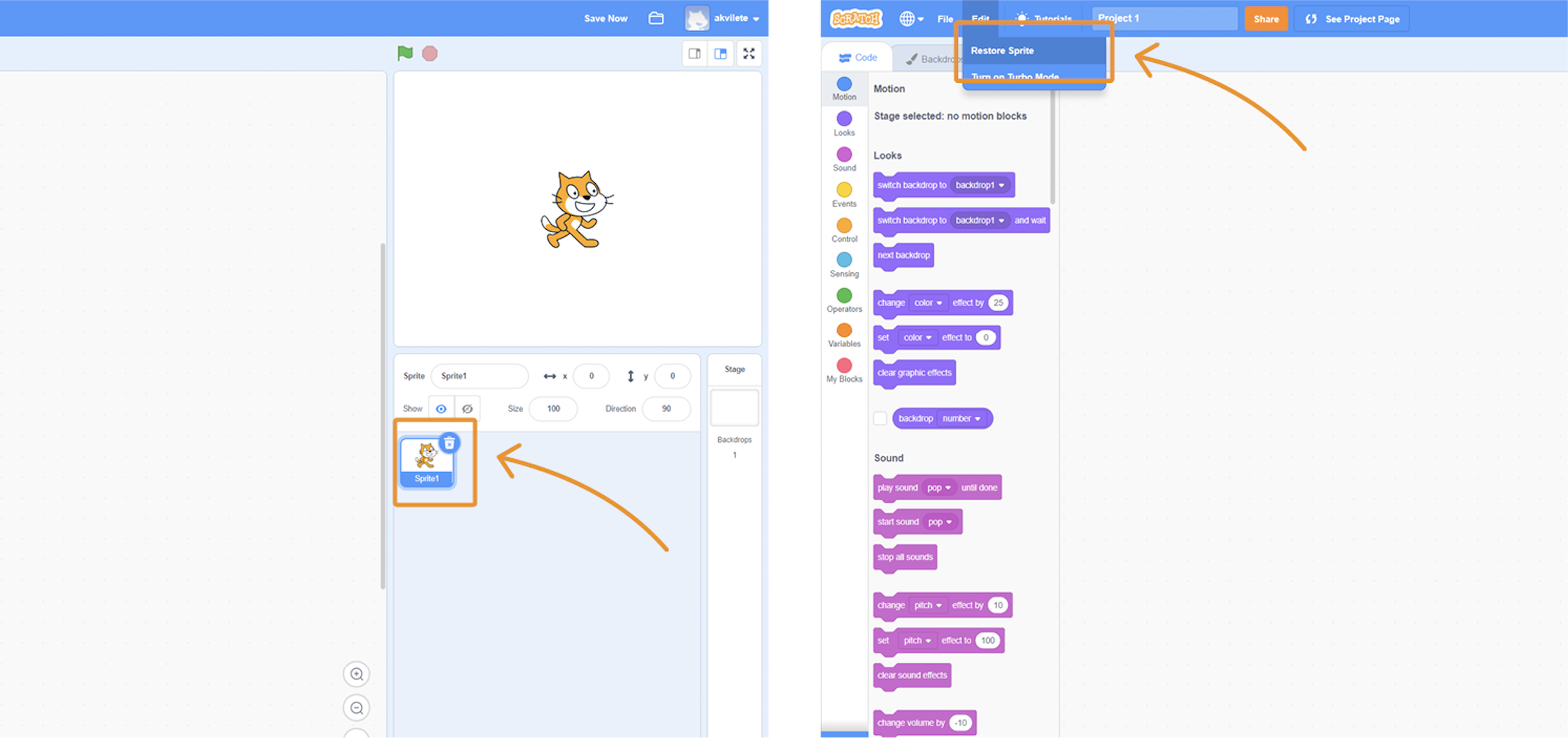
Accidentally deleting Sprites: If you accidentally deleted your Sprite, go to ‘Edit’ and click ‘Restore a Sprite’.
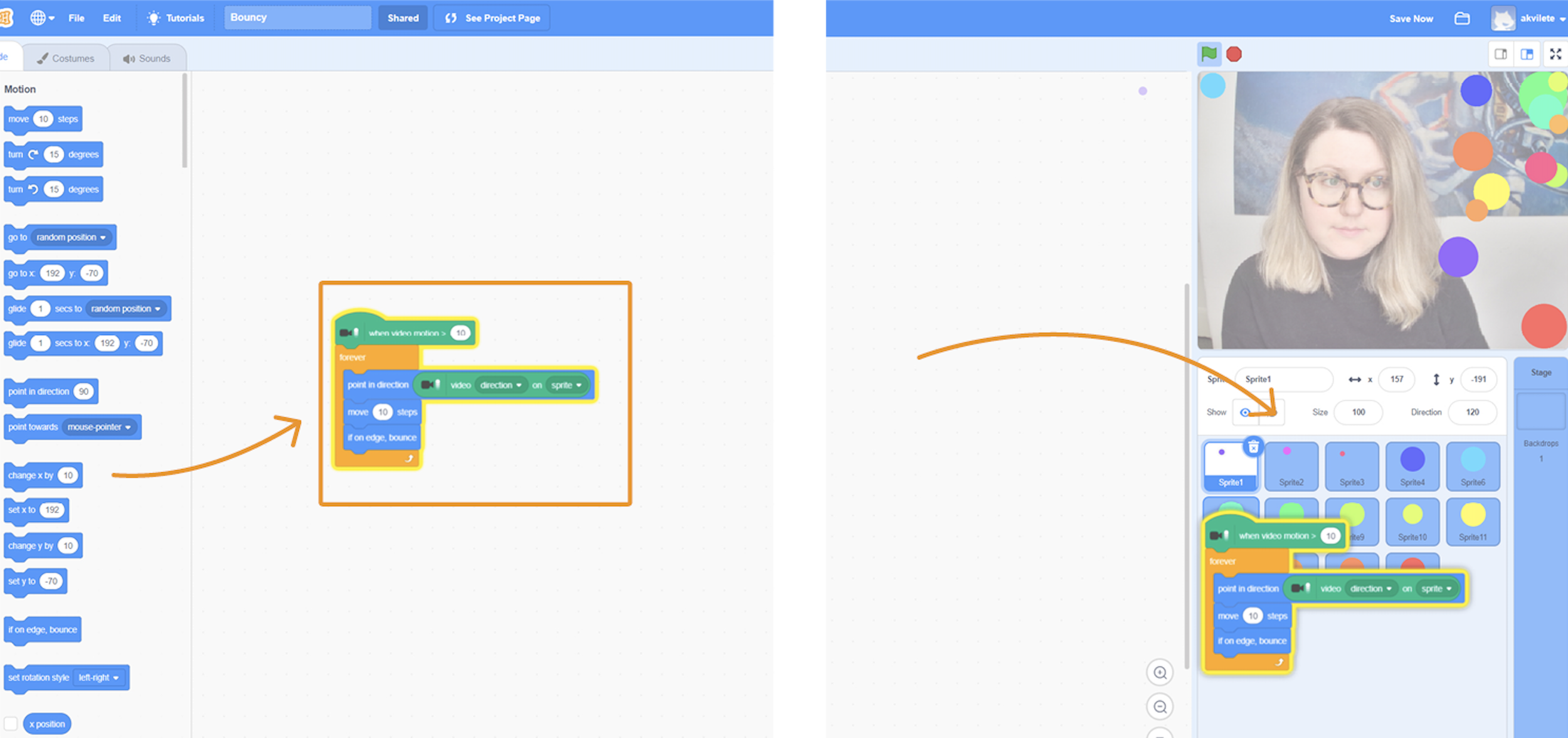
Quick code copy: If you have many Sprites and want all of them to do the same, you can quickly copy the code. Drag and drop the code onto the Sprite. Wait for the Sprite to wiggle before releasing the code.
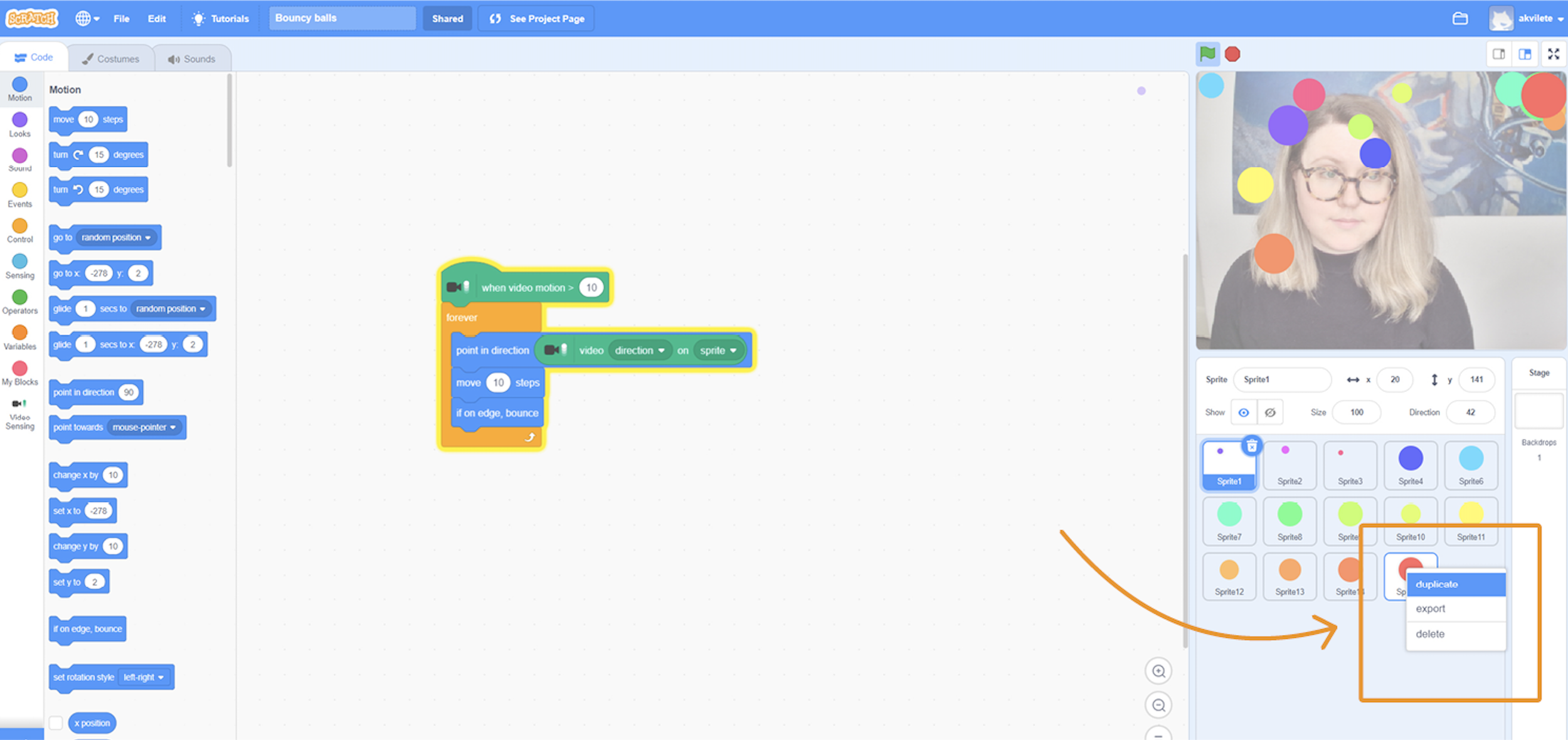
Duplicate Sprites: To duplicate a Sprite right click and select ‘Duplicate’.
Have fun creating games using Scratch! Why not share this activity with others?